Digitizing VHS tapes is a race against time — and most people don’t realize how little time they have left.
I found a box of tapes in my parents’ garage last summer. Wedding footage from 1994. My sister’s first birthday. A family trip to the coast that nobody remembered taking. When I popped one into an old VCR, the picture was washed out, the audio warbled, and about twenty minutes in, the tape started squealing.
That was the wake-up call. Those tapes had maybe a few more years of usable playback left — if I was lucky.
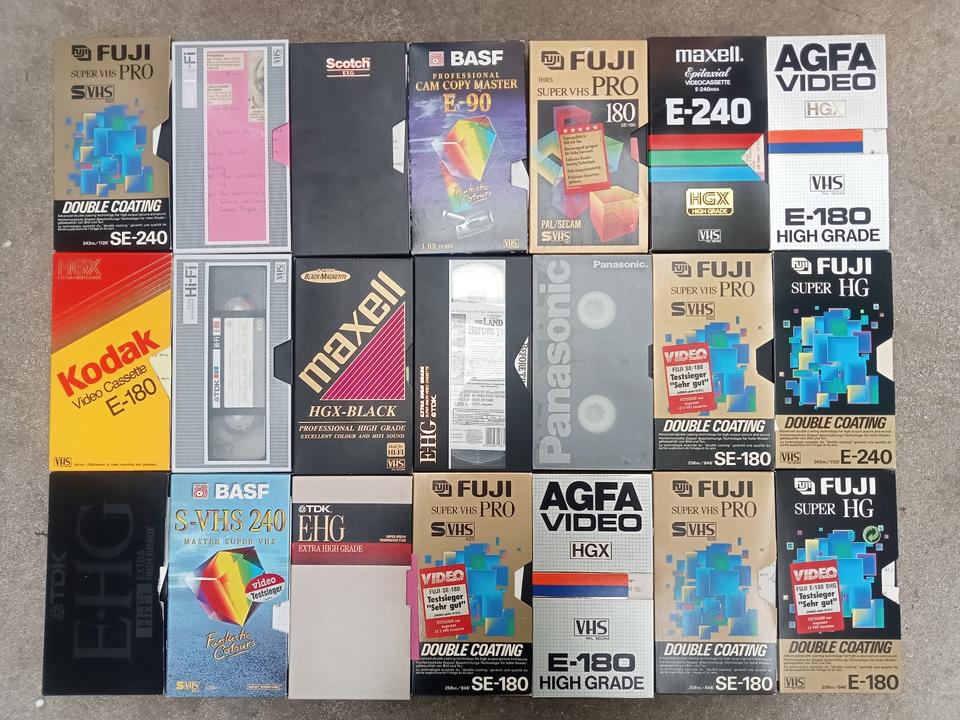
If you’ve got a stack of VHS tapes sitting in a closet, attic, or storage unit, you’re in the same boat. The good news: digitizing VHS tapes yourself is cheaper and easier than you’d think, especially with the right software. This guide walks through everything — from understanding why your tapes are dying to getting clean digital files onto your hard drive using Retro Vibe Video Capture.
Table of Contents
Why Digitizing VHS Tapes Can’t Wait Any Longer
VHS was never meant to be an archival format. The tapes themselves are just thin strips of plastic coated with magnetic oxide particles — and those particles lose their charge over time whether you play the tapes or not.
Most tapes show noticeable quality loss after 10 to 25 years. If yours were recorded in the 80s or 90s, the degradation has already started. You might not see it until you actually try to play them, but the signal is weakening year after year.
Here’s what’s actually happening inside the cassette:
The magnetic particles that store your video and audio gradually lose their charge through a process called remanence decay. Colors fade, details get muddy, and you start seeing snow or static where there used to be a clear picture.
Meanwhile, the binder — the chemical glue that holds the oxide to the plastic strip — absorbs moisture from the air. Over time this causes what tape nerds call “sticky-shed syndrome,” where the tape becomes tacky and literally sticks to the playback heads inside your VCR. You’ll hear it as a high-pitched squeal, and if you keep playing, you risk shredding the tape entirely.
Then there’s mold. If your tapes have been sitting in a humid basement or a hot attic, there’s a decent chance mold has started growing on the tape surface. Once that happens, the affected sections are usually gone for good.
And here’s the other problem: VCRs themselves are disappearing. The last one rolled off the production line back in 2016, and finding a working player in decent condition gets harder (and more expensive) every year. Repair shops that service VCRs are closing. Parts are drying up.
The window to do this yourself, affordably, is closing. Not next decade — now.
What You Need for Digitizing VHS Tapes at Home
The equipment list is shorter than you’d expect. Here’s what you need:
A working VCR. This is the big one. If you don’t still have one, check local thrift stores, estate sales, or eBay. Expect to pay anywhere from $30 to $100 for a decent unit. Before you buy, make sure the heads are clean and the mechanical parts work — test with a cheap tape you don’t care about. A VCR with S-Video output is ideal since S-Video carries a better signal than standard composite (the yellow RCA plug).
A USB capture device. This is the bridge between your analog VCR and your digital computer. There are a few tiers:
Budget option: A basic USB capture card runs about $12 to $25 on Amazon. Brands like DIGITNOW and REDGO make simple dongles that accept composite (RCA) and sometimes S-Video input. They get the job done, though picture quality can be hit-or-miss with the cheapest models.
Mid-range sweet spot: The Elgato Video Capture (around $60 to $90) has been the go-to recommendation for years. Clean capture, works on Mac and PC.
For more control: A proper capture card like the AVerMedia Live Gamer Portable 2 Plus ($150 to $200) gives you higher-quality capture with more flexibility.
RCA cables (and maybe an S-Video cable). Your VCR connects to the capture device with these. Most capture devices come with the necessary cables, but double-check. If your VCR has S-Video out, grab an S-Video cable — the quality difference over composite is noticeable.
A computer. Nothing fancy. Any modern PC or Mac with a USB port and enough free storage will do. VHS captures at standard definition, so you’re looking at roughly 1 to 4 GB per hour of footage depending on your quality settings.
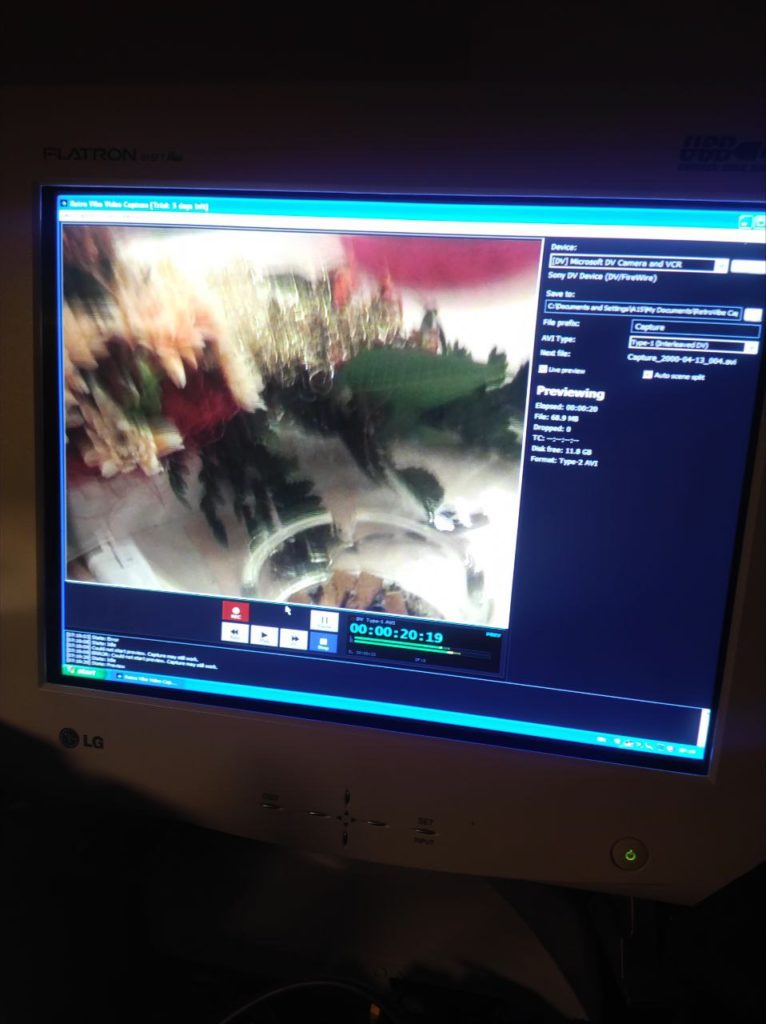
your capture software (the software). This is where a lot of people get tripped up — they buy the hardware and then struggle with complicated recording software that was designed for livestreamers, not regular people trying to save family tapes. was built specifically for this job. You plug in your capture device, and the software automatically detects it — no digging through settings menus or configuring audio inputs. It shows your VCR’s output in a live preview window, you hit one button to start recording, and another to stop. That’s it. It handles the format, resolution, and encoding automatically so you’re not Googling “what codec should I use for VHS” at midnight. There’s a so you can test it with a few tapes before committing, and after that it’s a one-time — less than a single tape at most mail-in services.
Storage. An external hard drive or SSD for your finished files. A 1TB drive will hold hundreds of hours of digitized VHS footage.
Step-by-Step: How to Digitize Your VHS Tapes
Step 1: Inspect and Prepare Your Tapes
Before you feed any tape into a VCR, give it a once-over. Open the cassette door flap and look at the tape surface. You’re checking for visible mold (white or fuzzy spots), wrinkles, or any obvious damage.
If the tape looks clean, gently turn the spools by hand to make sure the tape moves freely without catching. If a tape hasn’t been touched in decades, the first few seconds of footage might be stuck to itself. A gentle manual wind can help loosen things up.
For tapes with mold, don’t play them — mold will transfer to your VCR heads and contaminate every tape you play afterward. Mild surface mold can sometimes be carefully wiped with a soft lint-free cloth, but anything serious should go to a professional.
One more thing: if you have a VCR head cleaning tape, run it before your first capture session. Dirty heads are the number one cause of poor playback quality.
Step 2: Connect Your Hardware
The signal chain goes: VCR → cables → capture device → USB → computer.
Connect the yellow RCA plug to video out on the VCR, and the red and white plugs to audio out. If you’re using S-Video, connect the S-Video cable for video and still use the red/white RCA for audio.
Plug the capture device into your computer’s USB port. Use a USB port directly on the computer, not a hub — some hubs don’t provide enough power or bandwidth for reliable capture.
Step 3: Set Up your capture software
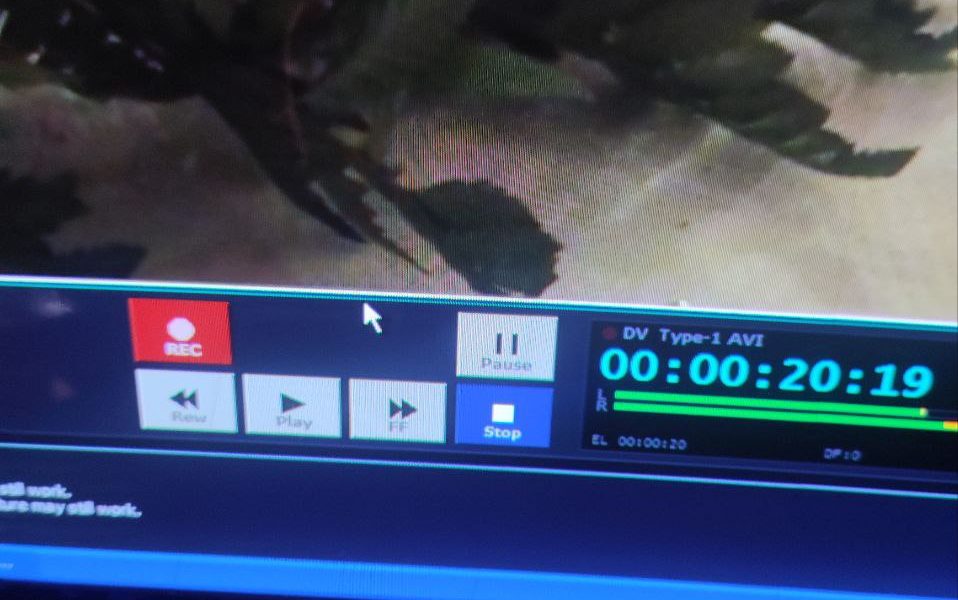
Download and install your capture software. When you open it for the first time, it scans for connected capture devices and selects yours automatically. If you have multiple devices plugged in, pick the right one from the dropdown — but most people only have one, so this step takes about two seconds.
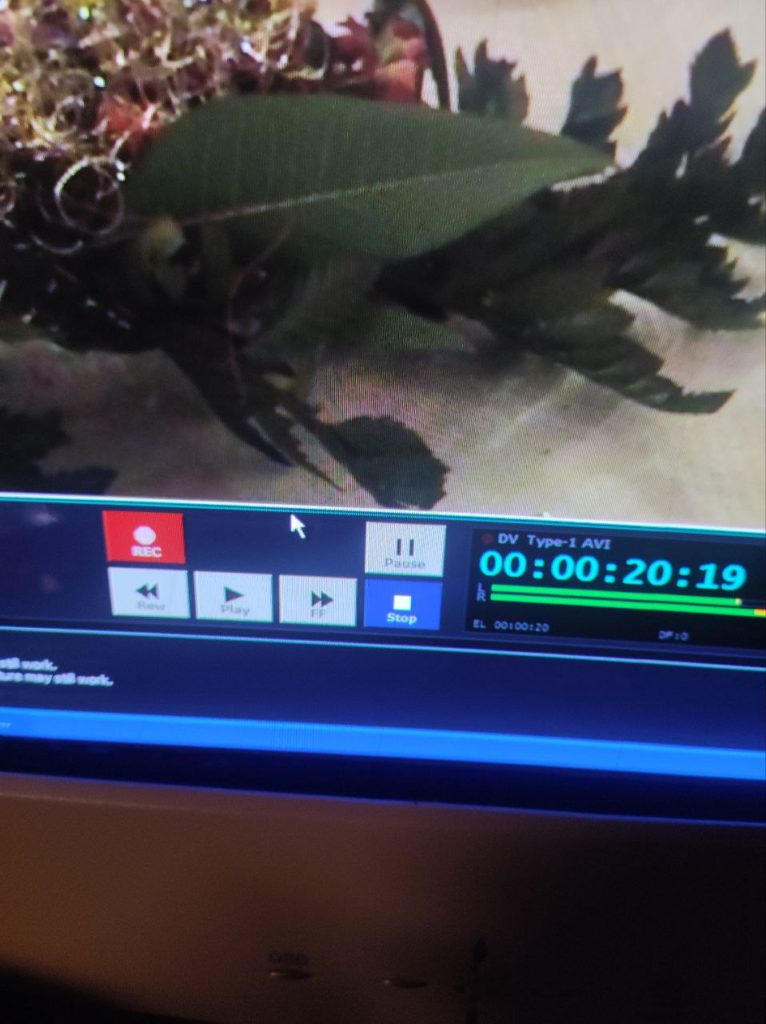
You’ll see a live preview window showing whatever the VCR is outputting. If the VCR is powered on and playing a tape, you should see the video right there. If not, check your cable connections.
The software defaults to 720×480 resolution at the correct frame rate for your region (NTSC or PAL), and records to MP4 with H.264 encoding — which is the ideal balance of quality and file size for VHS content. You can change these settings if you want, but the defaults are what I’d recommend for 99% of people.
Set your output folder to wherever you want files saved — ideally that external drive.
Step 4: Capture Your Tapes
This is the slow part. Digitizing VHS tapes happens in real time — a two-hour tape takes two hours to capture. There’s no way around this.
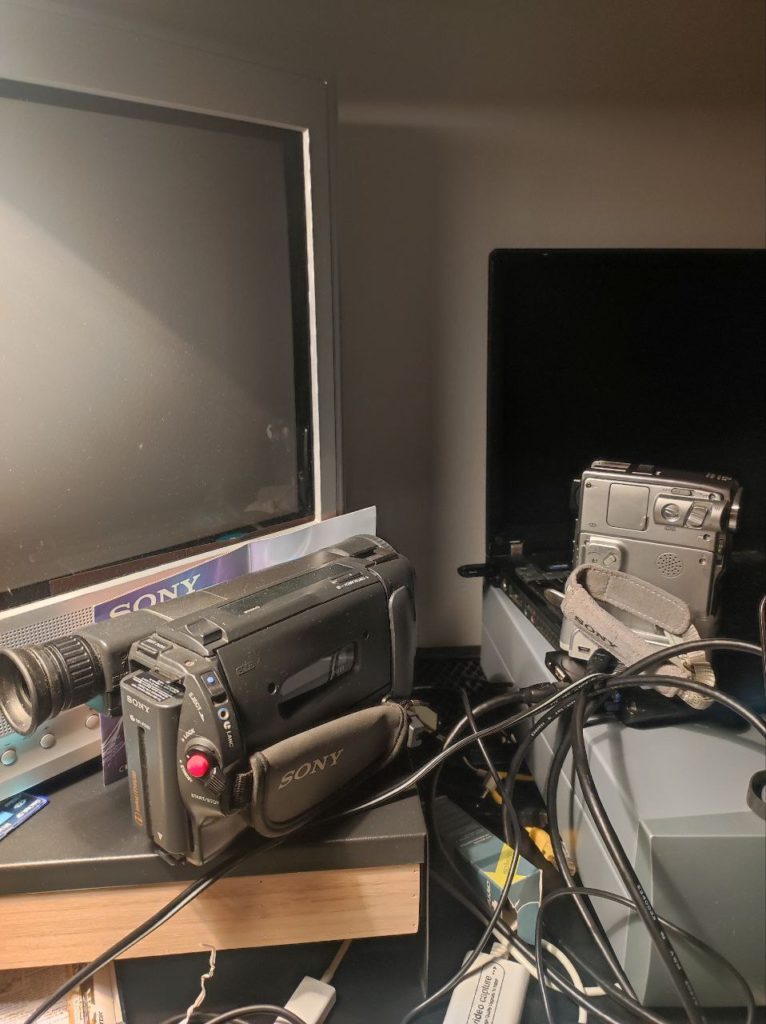
Keep an eye on the capture periodically. If you see the picture jumping, heavy static, or hear audio cutting out, the tape might need attention. Sometimes pausing and adjusting the VCR’s tracking control can clean things up.
Step 5: Name and Organize Your Files
Don’t just leave everything as “Capture_001.mp4.” As soon as you finish a tape, rename the file with something descriptive: “1994_Johnson_Wedding.mp4” or “Christmas_1988_Grandma_House.mp4.” Future you (and your family) will thank you.
Create a simple folder structure. I use: Year → Event. So “1994/Wedding/” or “1988/Christmas/.” Whatever works for you, just be consistent.
Step 6: Back Up Everything
This is the step people skip, and then they regret it later. Your freshly digitized files should exist in at least two places, ideally three:
Your computer or external drive (the working copy), a second external drive or NAS (the backup), and a cloud service like Google Drive, Backblaze, or Dropbox for off-site protection.
Hard drives fail. It’s not a question of if, it’s when. Don’t let a dead drive wipe out all the work you just did.
Common Problems (and How to Fix Them)
The picture is snowy or full of static. Usually dirty VCR heads. Run a cleaning tape. If that doesn’t help, try adjusting the tracking control on the VCR.
The picture rolls vertically. A tracking issue. Most VCRs have an auto-tracking feature — try pressing the channel up/down buttons while a tape is playing, or look for a tracking adjustment in the VCR’s menu.
Colors look wrong or washed out. Could be a cable issue (make sure everything is firmly connected), or the tape itself has degraded. Try a different tape to rule out the VCR. If S-Video is an option, switch to that — it separates the color and brightness signals and usually gives a much cleaner image. You can also use your capture software’s built-in color correction after capture to improve washed-out footage.
Audio is muffled, distorted, or missing. Check your cable connections first. If only one channel works, one of your RCA audio plugs might be loose. In your capture software, make sure the correct audio input is selected in preferences (usually auto-detected, but worth checking).
The tape squeals when playing. Stop immediately. This is sticky-shed syndrome — the binder is breaking down and the tape is sticking to the VCR heads. Playing it further can cause permanent damage. These tapes need professional treatment. Some people have success “baking” tapes in a food dehydrator at around 130°F/55°C for several hours to temporarily re-bond the oxide, but this is risky at home. For irreplaceable footage, send it to a professional.
The VCR eats the tape. Power off the VCR immediately. Don’t try to yank the tape out. Open the VCR’s top panel if possible and gently extract the tape by hand. The tape may be salvageable if it hasn’t creased badly.
your capture software doesn’t detect my capture device. Try unplugging and re-plugging the USB connection. Make sure you’re using a direct USB port, not a hub. On Windows, check Device Manager to confirm the device is recognized. On Mac, check System Preferences → Security & Privacy to make sure the app has permission to access the capture device.
DIY vs. Professional Services: Which Makes Sense?
Here’s the honest breakdown:
Go DIY if you have more than 5 to 10 tapes, you’re comfortable with basic tech setup, and you want full control over the output quality. Cost: $80-200 for hardware plus for your capture software.
Go professional if you have just a few tapes, the tapes are damaged or moldy, or you simply don’t have the time. Services like Legacybox and various local shops charge $15-30 per tape. You mail them in and get digital files back on a USB drive or via cloud download.
The hybrid approach (what I actually recommend): Digitize your everyday tapes yourself with your capture software, but send any damaged or irreplaceable ones — like your only copy of a wedding or a tape from a deceased relative — to a professional service. They have specialized equipment for handling fragile media without making things worse.
Tips From Someone Who’s Digitized Over a Hundred Tapes
After going through close to a hundred tapes over the past couple of years, here are the things I wish someone had told me upfront:
Start with your least important tapes. Get your workflow dialed in on footage you don’t care about before touching the irreplaceable stuff. Your first few captures will probably have minor issues — a cable not fully seated, the wrong input selected, whatever. Better to make those mistakes on a random sitcom recording than on your grandmother’s 80th birthday party.
Label your tapes before you start. Go through your entire collection, write down what’s on each tape (even if it’s a guess based on the handwriting on the label), and prioritize. The tapes you care about most should go first, because they’re also probably the oldest and most degraded.
Batch your sessions. Since digitizing VHS tapes happens in real time, I’d start a tape going in the evening, check on it after an hour, then start another before bed. your capture software runs stable in the background — I never had it crash or drop frames, even on overnight sessions. By morning, I’d have several tapes done.
Don’t try to “fix” the video during capture. Capture the raw footage as-is, then do any color correction, denoising, or trimming in editing software afterward. your capture software’s built-in filters are perfect for this — you can adjust things after the fact without re-capturing. You can always re-edit a clean capture, but you can’t undo processing on a processed file.
Keep your original tapes even after digitizing. Storage is cheap, and capture technology keeps improving. Five years from now, you might want to re-capture at higher quality with better hardware. Don’t throw away the originals.
Frequently Asked Questions About Digitizing VHS Tapes
▸ How long does it take to digitize a VHS tape?
▸ Can I digitize VHS tapes without a VCR?
Not really. You need something to play the tape, and that means a VCR. There are a few all-in-one devices with built-in screens that record directly to an SD card, but they still require a VCR for playback. There’s no consumer device that accepts a VHS cassette and outputs a digital file on its own — you always need a player.
▸ What resolution should I capture VHS at?
▸ What's the best file format for digitized VHS?
▸ Is it worth paying a professional service to digitize my tapes?
▸ How much storage space do I need for digitized VHS tapes?
At standard quality (H.264, 720×480), expect about 1-2 GB per hour of footage. A typical 2-hour VHS tape produces a 2-4 GB file. A 1TB external hard drive can hold roughly 250-500 hours of digitized footage, which is more than enough for most family collections.